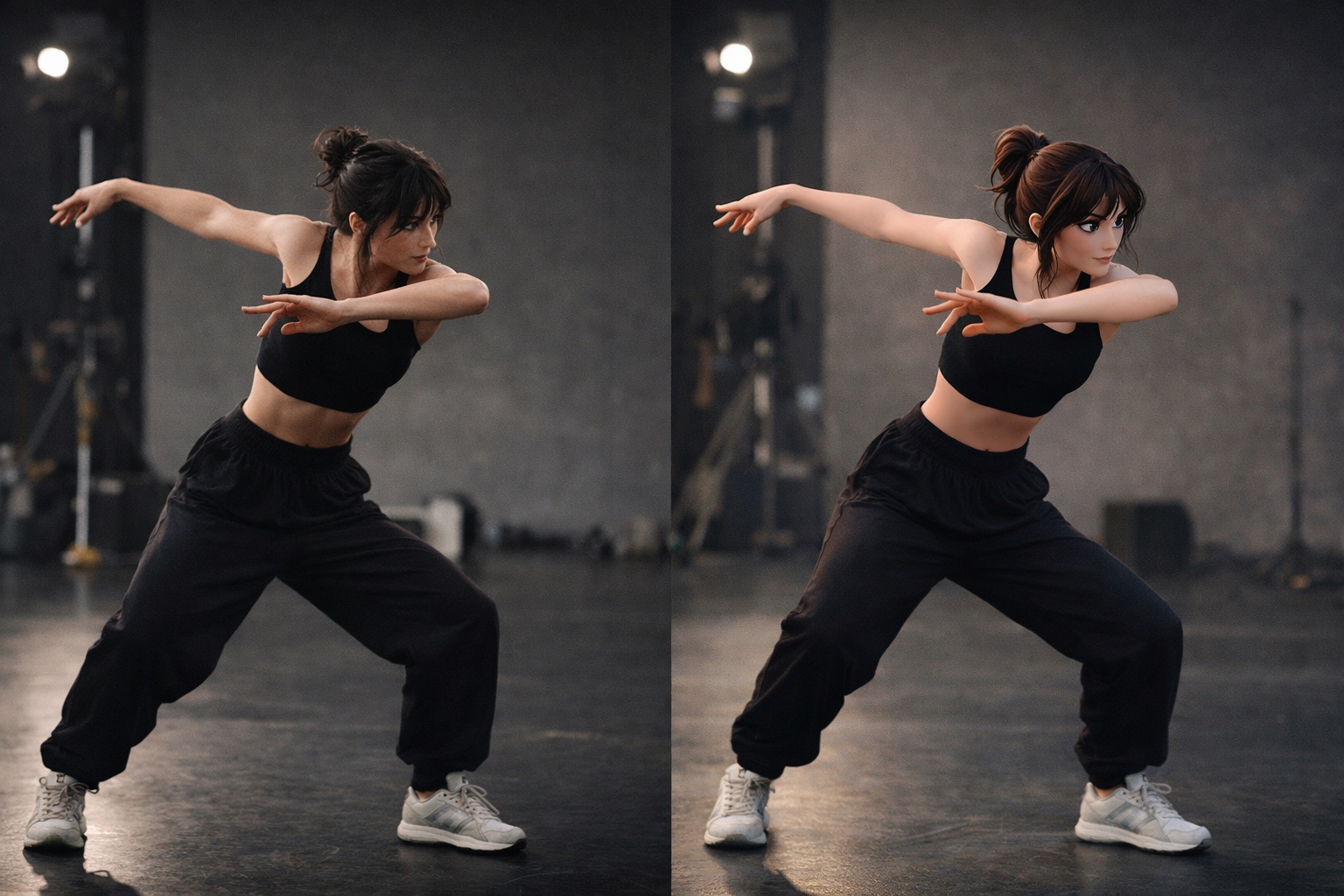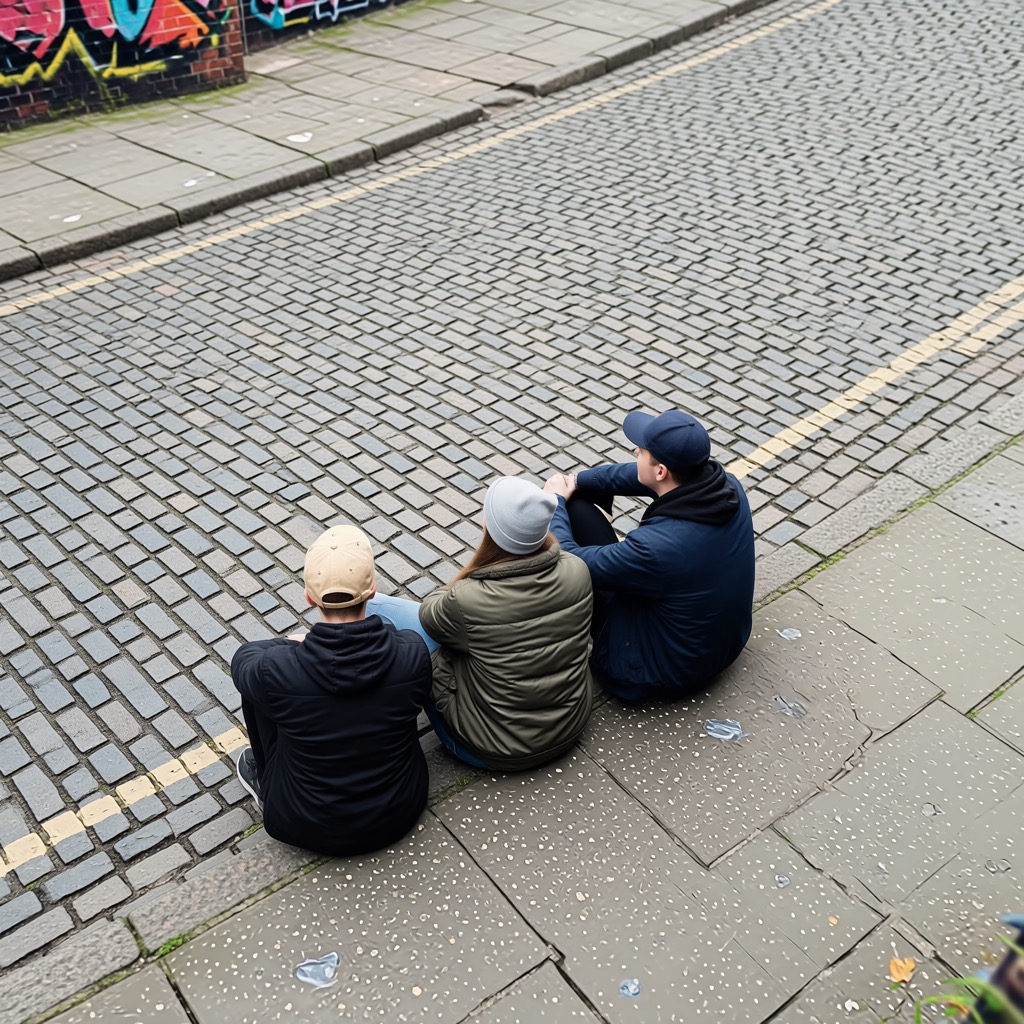
Camera angle example
Example 1 of 1Use 3D Camera Control AI to explore a new angle from one reference image. Choose your camera angle, adjust the framing, and generate images for character concepts, product ideas, or your next video.
Compare each reference view with its matching angle example. 3D Camera Control AI helps you explore camera angles while keeping the original subject as a starting point.
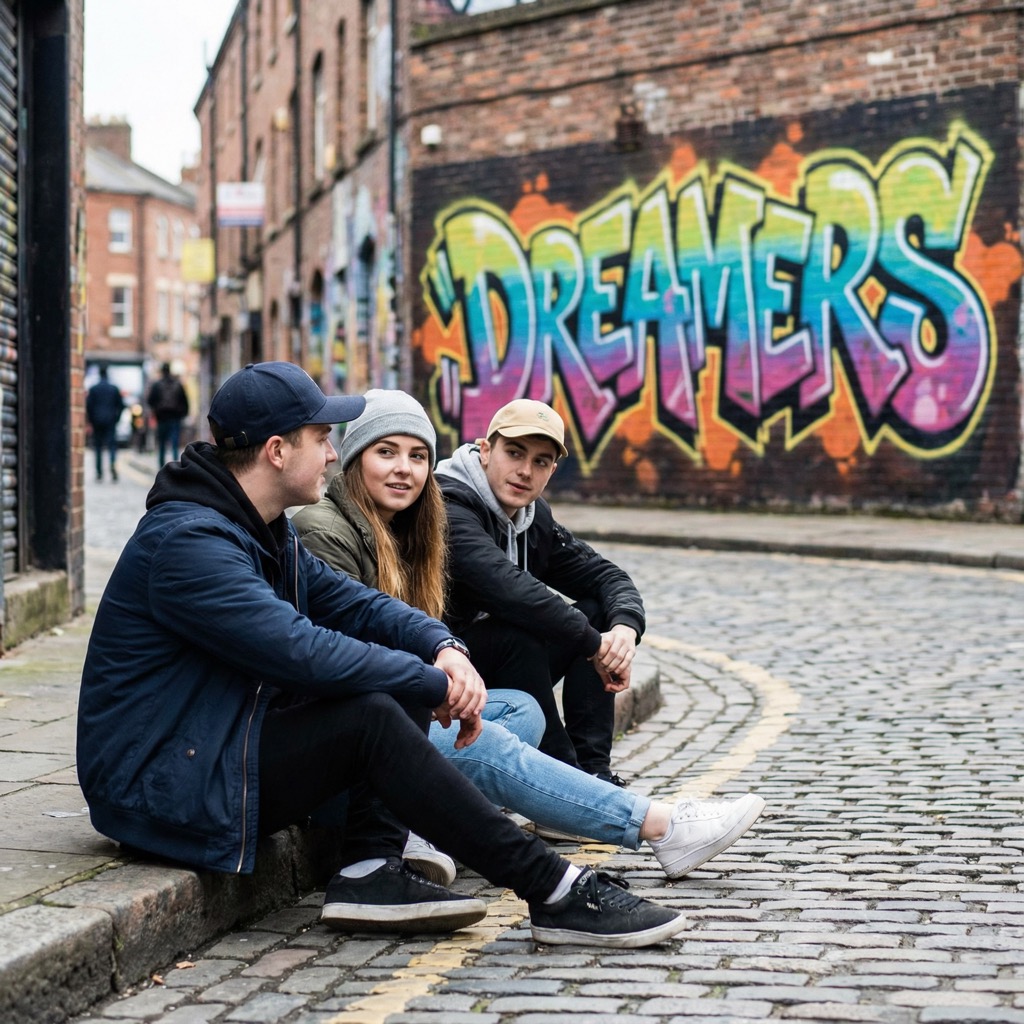
View notes
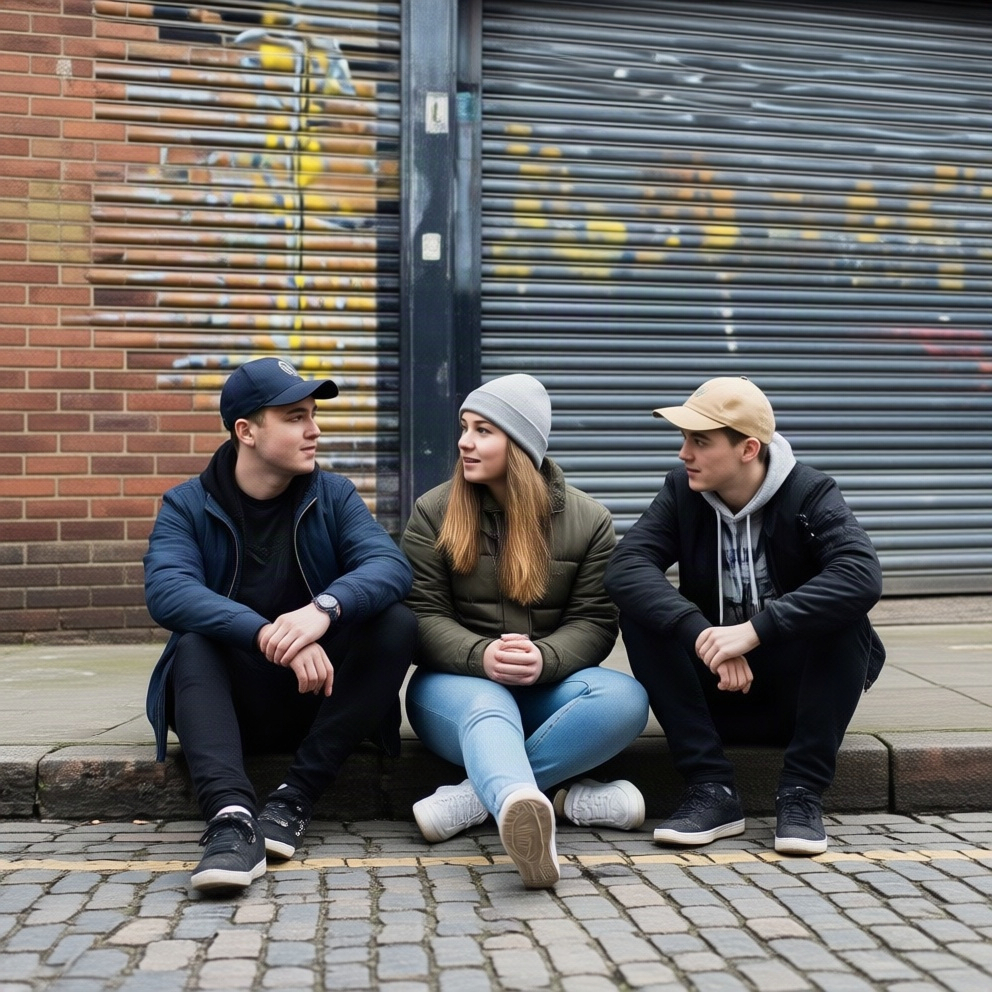
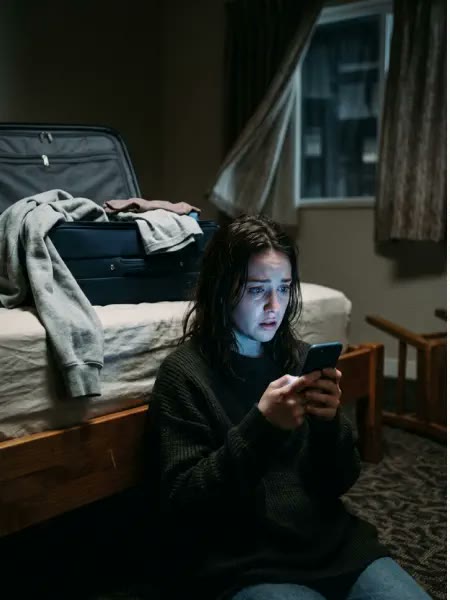
View notes
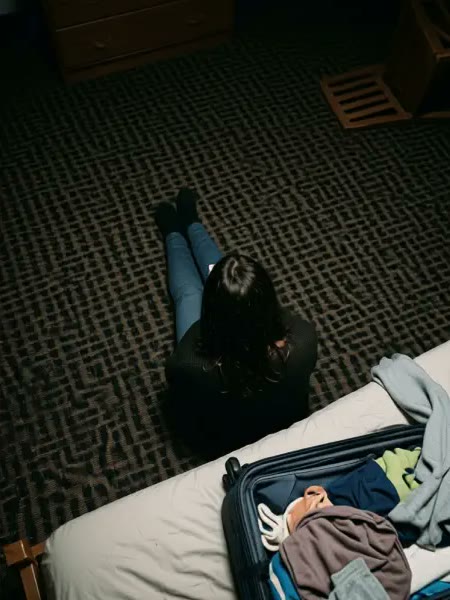
Start with a clear image, choose a camera angle, then review the result. 3D Camera Control AI keeps that sequence in one workspace.
Choose Your AngleUpload a JPEG, PNG, or WebP file up to 10 MB. A sharp subject, visible edges, and readable details give the generator a clearer starting point.
In 3D Camera Control AI, select a preset or drag the camera guide. Adjust horizontal direction, elevation, and distance; add brief details you want preserved.
Sign in and generate your view. Compare it with the reference, download the saved image, or use the result as a new reference for another angle.
3D Camera Control AI helps turn a single reference into visual options you can assess. Choose the viewpoint that serves your composition before committing to a finished asset.
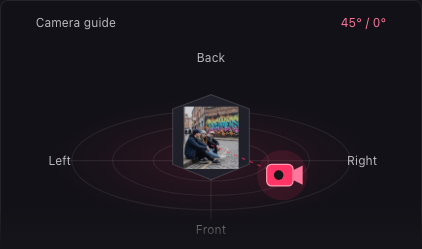
Set direction, height, and distance independently in 3D Camera Control AI. The camera guide makes your selection visible, while sliders let you refine the angle without rewriting a long prompt every time.
Adjust the Camera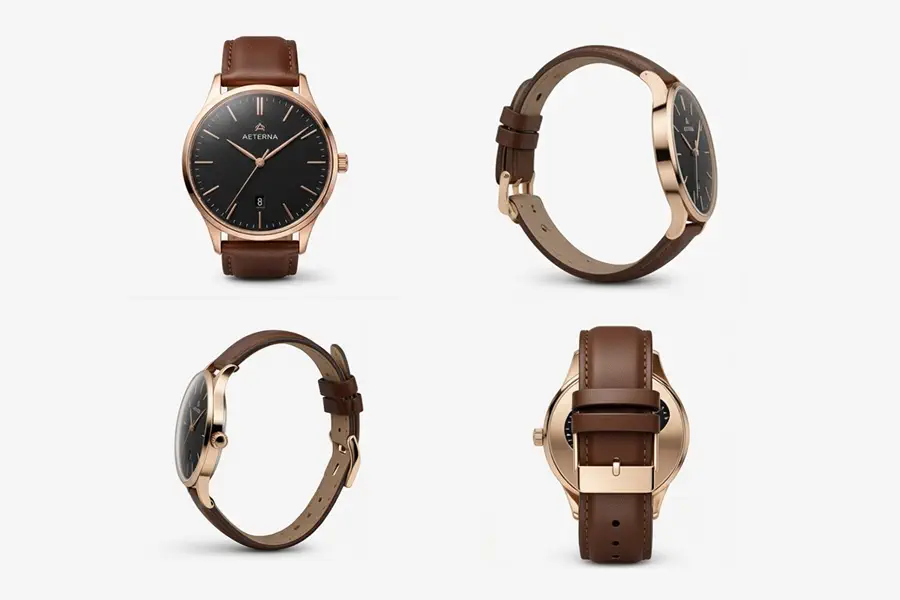
Use 3D Camera Control AI to explore how a product might look from another side. Compare shape, materials, and framing as creative references, then check inferred surfaces and small details before using an image in a listing.
Explore Product Angles3D Camera Control AI keeps the reference, camera settings, and finished views together, so you can focus on choosing a useful composition rather than reconstructing your previous setup.
Keep your reference at the center of each request. Review faces, clothing, and materials across views before selecting the image that fits your project.
Select up to six preset angles in 3D Camera Control AI. Each view generates separately, giving you distinct options to compare without replacing completed images.
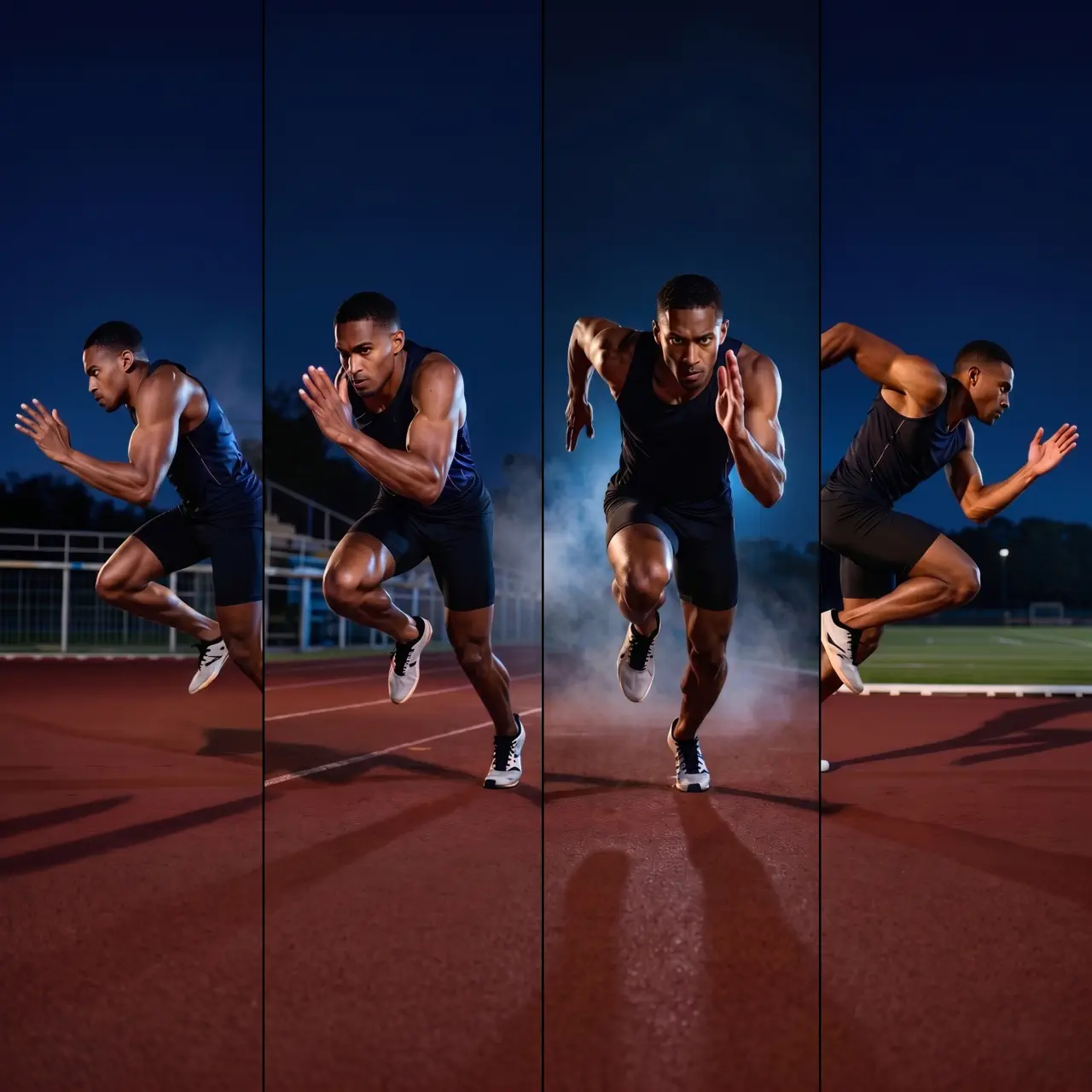
Use a generated view as your next reference when its framing works. Adjust one camera setting at a time to understand what changes between versions.
3D Camera Control AI saves submitted references, settings, and results to your account. Reopen My work to continue from a completed view within its retention period.
Find practical answers about references, image quality, credits, and saved work before you choose your next camera position.
3D Camera Control AI generates a new two-dimensional image guided by your reference and camera settings. It helps explore front, side, back, low, and overhead perspectives. The output is an image you can download, rather than a 3D mesh or a model you can rotate afterward.
New accounts receive 20 shared credits, enough for two images in 3D Camera Control AI at 10 credits each. This is a one-time registration allowance. Existing credits, subscription allocations, and eligible credit packs use the same account balance; there is no separate daily free allowance.
Each image in 3D Camera Control AI uses 10 credits. Two selected views require 20 credits, and six require 60. Views run in sequence and are charged separately. Stopping a batch leaves the current request running; completed images remain available, and you can continue missing views later.
Start with one well-lit subject and avoid heavy obstruction. In 3D Camera Control AI, choose a preset first, then refine one axis at a time. Use the optional details field for important colors, clothing, or background cues. Simple references make changes easier to assess than crowded scenes.
3D Camera Control AI interprets angles through image generation, so a selected degree is guidance rather than a geometric guarantee. Hidden surfaces are inferred, and faces, text, or fine details may vary. Compare each result with your reference before using it for product accuracy or identity-sensitive work.
Use the distance control in 3D Camera Control AI to request a wider composition or a close-up portrait. Elevation guides low, eye-level, or overhead framing. These controls work together with your reference; leave room around the subject when you want a different crop or stronger perspective.
3D Camera Control AI accepts one JPEG, PNG, or WebP reference up to 10 MB. Public image URLs also need to allow browser access; if an import fails, download the file and upload it. Generated views use the 1K image setting, and downloads preserve the returned image format.
A failed generation in 3D Camera Control AI releases its reserved credits or returns committed credits through the account balance. Your reference and settings remain available for another attempt. If confirmation is still pending, wait for its status to resolve instead of starting a duplicate request.
Sign in to the same account and open My work in 3D Camera Control AI. Submitted references, camera parameters, and saved results can be restored during your account’s retention period. Unsubmitted changes are temporary, so generate a view to save that setup and download images you want to keep.

Bring one clear reference to 3D Camera Control AI, choose your viewpoint, and make a new image worth comparing with your original.
Change Camera Angle